How to fixed Google chrome blank page issue using these few step
===============================================
Google Chrome suddenly doesn't open any web pages, neither the Chrome settings page (chrome://settings/), extensions page (chrome://extensions/) or any other page/setting under Chrome menu. All other browsers (e.g. Internet Explorer, Mozilla Firefox, etc.) work perfectly. This is probably due to a malware/virus that corrupts Google Chrome settings and compromises its preferences file.

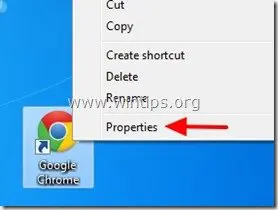
2. Then right-click on Google Chrome icon and choose “Properties”.
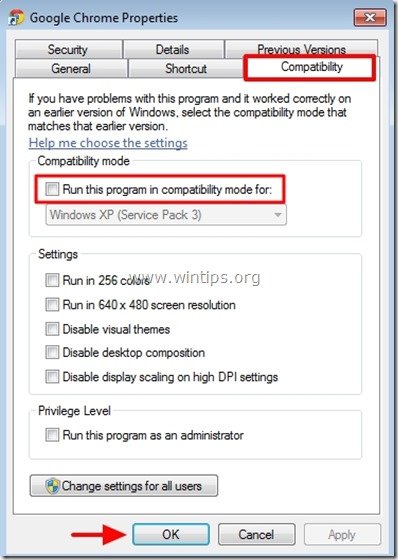
2. At “Compatibility” tab, uncheck the “Run this Program in compatibility mode for:” checkbox and press “OK”.
3. Launch Google Chrome. If Google Chrome works normally and the “Blank Page” problem disappears, then scan your computer for malicious programs. (See Solution 4).
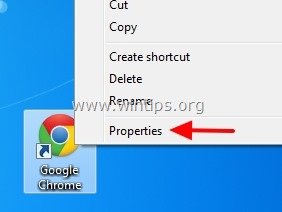
1. Right-click on Google Chrome icon and choose “Properties”.
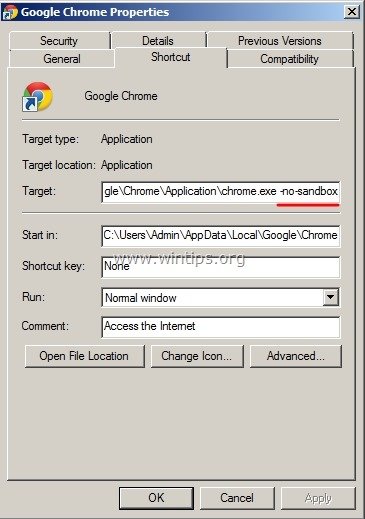
2. At “Shortcut” tab, go at the “Target” field and at the end of the existing command type: -no-sandbox
Example:
===============================================
Google Chrome suddenly doesn't open any web pages, neither the Chrome settings page (chrome://settings/), extensions page (chrome://extensions/) or any other page/setting under Chrome menu. All other browsers (e.g. Internet Explorer, Mozilla Firefox, etc.) work perfectly. This is probably due to a malware/virus that corrupts Google Chrome settings and compromises its preferences file.
- Google Chrome doesn’t open any window at all, but “chrome.exe” application appears to be a running process at Windows background (Task Manager).
- If you try to terminate the Chrome running process (“chrome.exe” or “Chrome.exe *32” if you have a 32bit OS) and then re-open Google Chrome again, the Chrome window probably comes up this time, but a blank (empty) page is displayed on your screen and Chrome indicates to be continuously loading without ever stopping.
- Chrome displays a white screen in any page you try to open and crashes.
- Google Chrome doesn't open any page including any page from Chrome menu, not even in Incognito window mode (Ctrl+Shift+N).
- All other browsers (e.g. Internet Explorer, Mozilla Firefox, etc.) work perfectly.
How to resolve and fix Chrome White Screen – Chrome Blank Page – error/problem.
Solution 1. Prevent Google Chrome from running in “Windows XP compatibility mode”.
1. Close all open Google Chrome Instances:- To do that: press “Ctrl+Alt+Delete” to start Windows “Task Manager” and at the “Processes Tab”, terminate (End Process) all Chrome running instances (e.g.“chrome.exe” or “Chrome.exe *32”)

2. At “Compatibility” tab, uncheck the “Run this Program in compatibility mode for:” checkbox and press “OK”.

3. Launch Google Chrome. If Google Chrome works normally and the “Blank Page” problem disappears, then scan your computer for malicious programs. (See Solution 4).
Solution 2: Disable Chrome’s “Sanbox” security feature.
Attention: Sandbox is a security feature that included in Google Chrome browser to protect you when you surf the web. But sometimes Antivirus software needs to disable this feature because causes error messages and problems. So perform this solution at your own risk.1. Right-click on Google Chrome icon and choose “Properties”.
Example:
Before3. Launch Google Chrome
C:\Users\Admin\AppData\Local\Google\Chrome\Application\chrome.exe
After:
C:\Users\Admin\AppData\Local\Google\Chrome\Application\chrome.exe -no-sandbox

Solution 3: Delete all files in Google Chrome “Local Storage” folder.
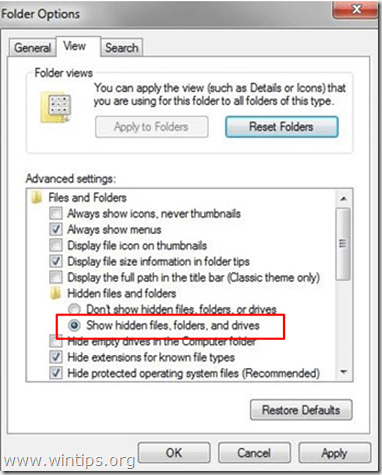
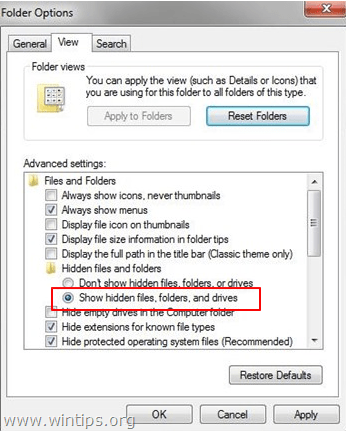
1. Enable the hidden files view, on your computer and then delete all files found under Google Chrome “Local Storage” folder. To do this:- Navigate to Windows “Control Panel” and open “Folder Options”.
- Select the “View” tab.
- Under “Hidden files and folders” section, check the “Show hidden files, folders, and drives” checkbox and press “OK”.
Comments
Post a Comment